
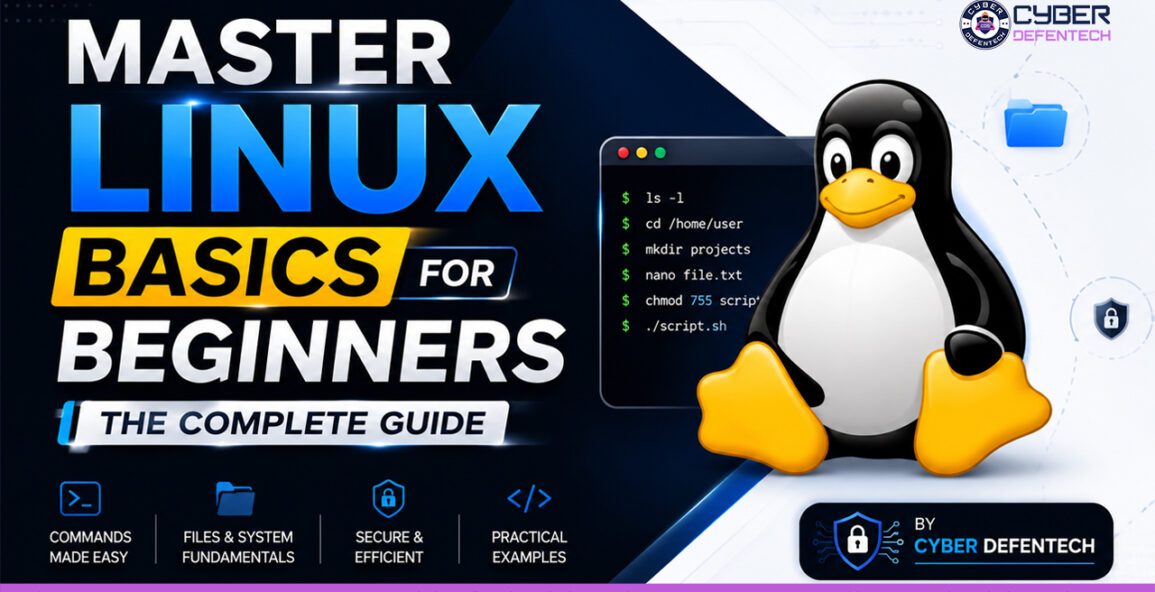
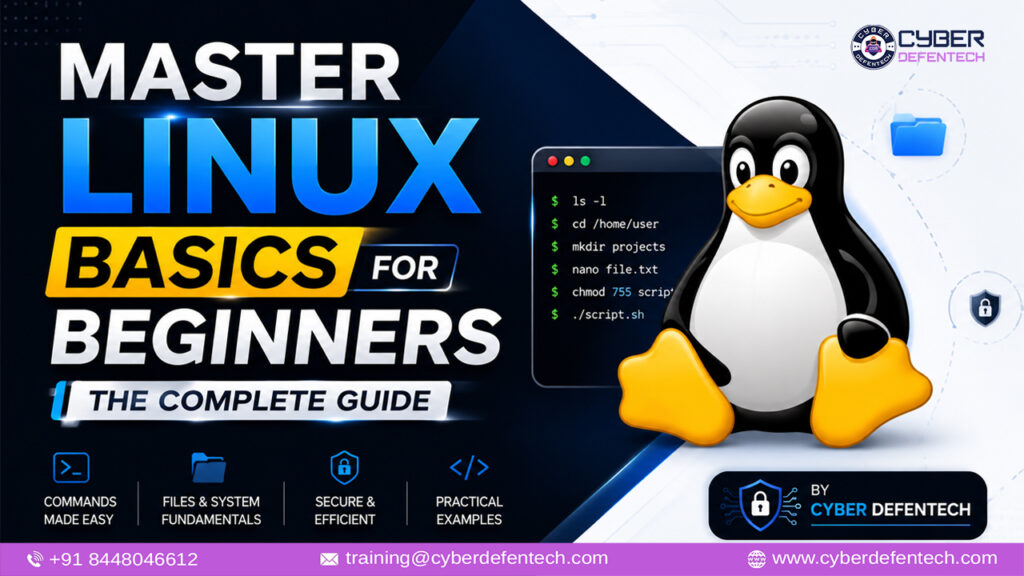
Master Linux Basics for Beginners: Complete Guide 2026 | Cyber Defentech
Introduction to Master Linux Basics for Beginners
Linux is the invisible engine that powers most of the modern digital world. From the servers that host the majority of websites and cloud platforms to Android smartphones, supercomputers, smart devices, networking equipment, and advanced cybersecurity tools — Linux is everywhere. Despite its massive presence, many beginners still feel nervous about learning it. The command line looks intimidating, the open-source nature feels complex, and the different distributions create confusion.
The reality is quite different. Linux is one of the most logical, powerful, and career-relevant skills you can learn today. Whether your goal is to become a system administrator, DevOps engineer, cloud professional, cybersecurity analyst, ethical hacker, or software developer, a solid foundation in Linux is almost mandatory.
In this detailed guide by Cyber Defentech, we will take you from absolute beginner level to a confident Linux user. You will learn what Linux really is, how to set up your learning environment safely, how the file system works, essential commands, user and permission management, process control, package management, basic shell scripting, and practical habits that help you grow faster. No previous technical experience is required. Everything is explained in simple language with real-world relevance.
By the end of this guide, you will not only understand Linux basics but also feel ready to practice and explore more advanced topics with confidence. In this complete guide, you will learn how to Master Linux Basics for Beginners in a simple and practical way.
What Exactly Is Linux? Foundation for Master Linux Basics for Beginners
Linux is a free and open-source operating system kernel that was created by Linus Torvalds in 1991. When this kernel is combined with a collection of software tools (mostly from the GNU project) and other applications, it becomes a complete operating system. These complete systems are known as Linux distributions or simply “distros.”
Unlike proprietary operating systems such as Windows or macOS, Linux can be freely used, studied, modified, and shared by anyone. This open nature has led to the creation of hundreds of distributions, each designed for different purposes — some for beginners, some for servers, some for security professionals, and some for advanced users who want complete control.
Key strengths of Linux include:
- High stability and reliability (many servers run for years without reboot)
- Strong security model based on permissions and least privilege
- Excellent performance even on older hardware
- Extremely customizable interface and behavior
- Massive community support and continuous improvement
- Free of cost for most distributions
Popular beginner-friendly distributions include Ubuntu, Linux Mint, Zorin OS, and elementary OS. For enterprise and server environments, professionals often use Rocky Linux, AlmaLinux, Debian, or Red Hat Enterprise Linux.
Why Should Beginners Learn to Master Linux Basics for Beginners in 2026?
Learning Linux is no longer optional for anyone serious about a technology career. Here are some strong reasons:
- Career Opportunities
System administration, DevOps, cloud engineering, site reliability engineering, cybersecurity, and ethical hacking roles almost always require Linux knowledge. - Cloud Computing Dominance
The majority of cloud servers on AWS, Google Cloud, Microsoft Azure, and other platforms run on Linux. - Cybersecurity Foundation
Almost every major security tool, penetration testing distribution (like Kali Linux and Parrot OS), and defensive platform is based on Linux. - Automation and Scripting Power
Linux makes it easy to automate repetitive tasks using shell scripts and tools like cron. - Cost and Freedom
You can learn and practice on powerful systems without paying expensive license fees. - Problem-Solving Mindset
Working with Linux teaches you how operating systems actually work, which improves your overall technical thinking.
Employers value candidates who can comfortably work on the command line and troubleshoot Linux systems. Starting early gives you a clear advantage.
Getting Started: How to Set Up Linux Safely to Master Linux Basics for Beginners
You do not need to delete Windows or buy a new computer to start learning Linux. There are several safe methods:
1. Virtual Machine (Best for Beginners)
Install free software like VirtualBox or VMware Workstation Player. Download an Ubuntu Desktop ISO file and create a virtual machine. This method keeps your main operating system completely safe. If anything goes wrong, you can simply delete the virtual machine and start again.
2. Windows Subsystem for Linux (WSL)
Windows 10 and Windows 11 users can enable WSL and install Ubuntu directly from the Microsoft Store. It runs Linux side-by-side with Windows and is very convenient for daily practice.
3. Live USB
You can create a bootable USB with tools like Rufus or Balena Etcher and try Linux without installing anything permanently.
4. Dual Boot
This method installs Linux alongside Windows on the same hard drive. It offers better performance but requires careful partitioning and is recommended only after you gain some confidence.
5. Cloud Free Tiers
Platforms like AWS Free Tier, Google Cloud, or Oracle Cloud allow you to create free Linux virtual machines for practice.
For absolute beginners, we strongly recommend starting with a virtual machine running Ubuntu Desktop. It is stable, well-documented, and has a large support community.
Understanding the Linux File System Hierarchy – Key Step to Master Linux Basics for Beginners
One of the most important concepts in Linux is the file system structure. Unlike Windows, which uses drive letters (C:, D:), Linux uses a single hierarchical tree that starts from the root directory represented by a forward slash /.
Here are the most important directories every beginner should understand:
- / — The root of the entire file system. Everything starts here.
- /home — Contains personal folders for each user (like /home/username).
- /etc — System-wide configuration files. Be careful while editing files here.
- /var — Variable data such as logs, caches, and mail.
- /usr — User programs, libraries, and documentation.
- /bin — Essential binary executables needed for basic system operation.
- /sbin — System binaries mainly used by the administrator.
- /tmp — Temporary files that are usually cleared on reboot.
- /opt — Optional or third-party software packages.
- /proc — Virtual file system that provides real-time system and process information.
- /sys — Another virtual file system related to hardware and kernel.
- /dev — Device files that represent hardware devices.
- /boot — Files required for the boot process, including the kernel.
- /root — Home directory of the root (superuser) account.
- /media and /mnt — Mount points for external devices and temporary mounts.
Understanding this structure helps you know where to look for configuration files, logs, programs, and user data. It also reduces the chances of making dangerous mistakes.
Essential Linux Commands to Master Linux Basics for Beginners
The command line (terminal) is the heart of Linux. While graphical interfaces exist, real power and efficiency come from the terminal. Below are the most important commands grouped by category. Here are the most important commands that will help you Master Linux Basics for Beginners quickly.
Navigation and Directory Management
- pwd — Shows your current directory path.
- ls — Lists files and folders. Useful options: ls -l (detailed), ls -a (hidden files), ls -lh (human-readable sizes).
- cd — Changes directory. Examples: cd /home, cd .. (one level up), cd ~ (home directory).
- mkdir foldername — Creates a new directory.
- rmdir foldername — Removes an empty directory.
- rm -r foldername — Removes a directory and its contents (use carefully).
- cp source destination — Copies files or directories (cp -r for folders).
- mv oldname newname — Moves or renames files and folders.
- touch filename — Creates an empty file or updates the timestamp.
Viewing and Searching File Content
- cat filename — Displays the entire content of a file.
- less filename or more filename — Views content page by page.
- head filename — Shows the first 10 lines (use -n for custom number).
- tail filename — Shows the last 10 lines (very useful for logs).
- grep “text” filename — Searches for specific text inside files.
- find /path -name “filename” — Searches for files by name.
- locate filename — Fast search (requires the database to be updated with sudo updatedb).
System Information Commands
- whoami — Displays the current username.
- id — Shows user and group IDs.
- uname -a — Displays detailed system information.
- hostname — Shows the system hostname.
- df -h — Shows disk space usage in human-readable format.
- du -sh folder — Shows the size of a directory.
- free -h — Displays memory (RAM) usage.
- top or htop — Real-time process and resource monitor.
- ps aux — Lists all running processes.
- uptime — Shows how long the system has been running.
- lscpu and lsblk — CPU and block device information.
File Permissions and Ownership
- ls -l — Shows detailed permissions and ownership.
- chmod — Changes file permissions.
- chown user:group filename — Changes ownership.
- chgrp groupname filename — Changes group ownership.
Learning users, groups and permissions is essential if you truly want to Master Linux Basics for Beginners.
Package Management (Ubuntu/Debian based)
- sudo apt update — Updates the package list.
- sudo apt upgrade — Upgrades installed packages.
- sudo apt install package_name — Installs new software.
- sudo apt remove package_name — Removes software.
- sudo apt search keyword — Searches for packages.
- apt list –installed — Lists installed packages.
Process Management
- ps — Shows processes.
- top / htop — Interactive process viewer.
- kill PID — Terminates a process using its Process ID.
- killall processname — Kills all processes with a specific name.
- bg, fg, jobs — Manage background and foreground jobs.
- nohup command & — Runs a command that continues even after logout.
Practice these commands regularly. Create a small practice folder and experiment freely inside the virtual machine.
Understanding Users, Groups, and Permissions to Master Linux Basics for Beginners
Linux is a true multi-user operating system. Security is built around the concepts of users, groups, and permissions.
Every file and directory has three types of ownership:
- Owner (the user who created it)
- Group (a collection of users)
- Others (everyone else)
Permissions are of three types:
- Read (r) — View the content
- Write (w) — Modify the content
- Execute (x) — Run the file or enter the directory
When you run ls -l, you see something like:
text
-rwxr-xr-- 1 john developers 4096 Oct 28 10:00 script.shThis means:
- Owner (john) has read, write, and execute
- Group (developers) has read and execute
- Others have only read
You can change permissions in two ways:
Symbolic Method
- chmod u+x file — Add execute for user
- chmod g-w file — Remove write for group
- chmod o=r file — Set others to only read
- chmod a+x file — Add execute for all
Numeric (Octal) Method
- 4 = read
- 2 = write
- 1 = execute
Examples:
- chmod 755 file — Owner full, group and others read+execute
- chmod 644 file — Owner read+write, others only read
- chmod 700 file — Only owner has full access
The root user has unrestricted power. Always use sudo carefully and only when necessary. Avoid logging in as root for daily work.
Working with the Shell and Introduction to Scripting – Master Linux Basics for Beginners
The shell is the program that interprets your commands. The most common shell is Bash (Bourne Again Shell).
Useful shell features:
- Tab completion (press Tab to auto-complete commands and file names)
- Command history (use up and down arrow keys)
- Aliases (alias ll=’ls -la’)
- Input/output redirection (>, >>, <, |)
- Wildcards (*, ?)
A simple shell script example:
Bash
#!/bin/bash
# This is a basic script

echo "Welcome to Linux learning!"
echo "Today's date is: $(date)"
echo "Current user is: $(whoami)"
echo "Current directory is: $(pwd)"
Steps to use it:
- Save the content in a file, for example welcome.sh
- Make it executable: chmod +x welcome.sh
- Run it: ./welcome.sh
Learning basic scripting helps you automate tasks and prepares you for more advanced system administration.
Package Management Across Different Distributions
Different Linux families use different package managers:
- Debian / Ubuntu / Linux Mint → apt
- Red Hat / CentOS / Rocky / AlmaLinux → dnf or yum
- Fedora → dnf
- Arch Linux → pacman
- openSUSE → zypper
Always update the repository information before installing new software. Prefer official repositories because they are tested and more secure. Avoid downloading random packages from the internet unless you trust the source completely.
Practical Learning Tips for Faster Progress
- Practice every single day, even if only for 25–30 minutes.
- Use the man command frequently (man ls, man chmod). It is the official documentation.
- Break things intentionally inside the virtual machine. Recovery teaches more than success.
- Keep a personal notes file or digital notebook of commands and concepts.
- Read error messages carefully instead of panicking.
- Join beginner-friendly communities such as Reddit’s r/linux4noobs, Linux Discord servers, and official distribution forums.
- Challenge yourself with small projects: create folders, write scripts, install software, check logs, and monitor resources.
- Gradually move from Ubuntu Desktop to a server version (Ubuntu Server) to experience a pure command-line environment. Consistent practice is the real secret to Master Linux Basics for Beginners successfully.
Common Mistakes Beginners Make and How to Avoid Them
- Running commands as root unnecessarily → Use a normal user and sudo only when required.
- Not reading the man pages → Make it a habit.
- Copy-pasting commands without understanding → Always try to understand what a command does.
- Ignoring backups → Take snapshots of your virtual machine regularly.
- Getting overwhelmed by too many distributions → Stick to one (preferably Ubuntu) for the first few months.
- Focusing only on GUI → Force yourself to use the terminal daily.
What to Learn After Mastering the Basics
Once you are comfortable with the fundamentals covered in this guide, you can move to:
- Intermediate shell scripting and automation
- Systemd service management
- Networking commands and basic server configuration
- SSH, firewalls (ufw/firewalld), and basic security hardening
- Log analysis and troubleshooting
- Introduction to containers (Docker)
- Basic cybersecurity tools on Linux
- Version control with Git on the command line
Practice platforms such as OverTheWire (Bandit series), TryHackMe, and Hack The Box offer excellent hands-on Linux challenges.
Conclusion: Start Your Journey to Master Linux Basics for Beginners Today
Mastering Linux basics is one of the highest-return skills you can develop in today’s technology landscape. It gives you deeper control over systems, opens multiple career paths, and builds a strong technical foundation that remains relevant for years.
The journey starts with curiosity and consistent practice. You do not need to learn everything in one week. Focus on understanding core concepts, practicing commands daily, and gradually increasing complexity.
At Cyber Defentech, we believe in practical, structured, and industry-oriented learning. This guide is designed to give you a clear and solid starting point. From here, continue exploring, practicing, and building real skills.
Start today. Open your terminal, type your first commands, and take the first step toward becoming proficient in Linux.
Welcome to the world of Linux — a world of power, flexibility, and endless learning opportunities.
 Call/WhatsApp:

